1. What is the difference between Force.com and Salesforce.com?
Force.com is the PaaS vertical that forms the foundation for the code, database fetching and UI development. Salesforce.com, being a superset is the SaaS vertical referring to the CRM functionality (Sales, Services & Marketing)
2. What is the difference between isNull and isBlank?
IsBlank () is a function that checks if an expression has a value or not. It returns TRUE if there is no value else False. It supports all fields’ type including Text.
IsNull () delivers similar functionality with a difference it supports Number fields only.
3. Explain different relationships in SFDC.
Lookup relationship links up two objects and up to 25 such objects can be linked. Parent fields are not mandatory here and they can be multiple layers deep. Addition to it there is no impact on security or deletion.
Master-Detail Relationship has to be a Parent-Child relationship only where Master denotes the Parent and Detail as the child. It can link up to 2 objects and deleting a Parent field automatically deletes Child field. A child in one relationship can’t be the parent in any other relationship.
4. What is the difference between SOQL and SOSL?
SOQL – Salesforce Object Query Language
- Can search one object at a time only
- Can be used in Triggers and Classes
- DML operations can be performed
- All types of fields included.
SOSL – Salesforce Object Search Language
- Can search multiple objects at a time.
- Can’t be used with Triggers
- DML operations can’t be performed
- Works only for email, text and phone types
5. How many reports types are there in Salesforce? There are 4 types of reports in Salesforce that are used to summarize object information
Tabular Report – for displaying grand total in Table format.
Matrix Report – Grouping based on Rows and Columns
Summary Report – Grouping done based on Columns only Joined Reports – Joining two or more reports.
6. What is Audit Trail?
Audit Trail is a function that helps track all the changes performed by different administrators to the Organization in the past 6 months. It covers details such as Date of changes made.
- Username that made the changes
- Details of the changes made
7. What is the Permission Set?
Permission Set can be used to grant extended access to a user or more without changing their profiles.
Object settings for Tab, Object permissions and Field permissions
Access to Apex class
System permissions
Visualforce access
8. What is a Dashboard? What are the different components?
A Dashboard is the page to view reports. Up to 20 multiple reports can be analysed in a Dashboard.
Chart – For graphical representation
Gauge – For depicting some value within a range of values.
Metric – For key values
Visual Page – For creating custom components and display values
Custom S Control – For displaying content in a Browser such as Java Applet, ActiveX Control etc.
9. What are Dependent Fields?
Dependent Fields can be attached with filters. i.e., a condition can be set for displaying the value in a field..
10. What is OWD?
Organization-Wide Sharing Defaults (OWD) defines the base line Setting for the organization. It defines the level of access to the User can see the other user’s records. OWD can be Private, Public Read Only, Public Read and Write.
11. What is profile and Role in salesforce?
Profile: Profile is object level and field level access, and it is mandatory for all users.
Role: Role is Record level access and it is not mandatory for all users.
12. What is apex data loader?
Apex data loader is used to insert, update, upsert, export the data. By using apex data loader we can import the data from outside the salesforce also.
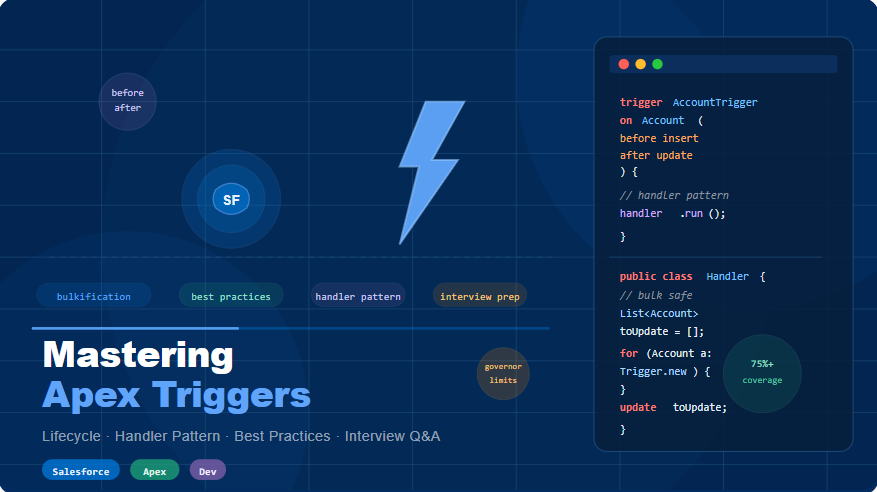
13. Types of Triggers in Salesforce
Trigger: Trigger is a piece of code that executes before or after a Record is inserted or updated.
There are two types of triggers:
Before Trigger: before trigger are used to update or validate records values before they are saved to the database.
After Trigger: After trigger are used to access field values that are set by the system and to effect changes in other records, such as logging into an audit table or ring asynchronous events with a queue. The records that are the after trigger are read only.
14. Difference between SOQL and SOSL Salesforce Object Query Language (SOQL)
- It is search in single Object.
- SOQL return records.
- It can use in triggers and classes.
- We can perform DML operation on query results.
Salesforce Object Search Language (SOSL)
- It is search in multiple objects.
- It is return Fields.
- It can use in triggers and classes.
- We cannot perform DML operation on search result.
15. Mention what are the different types of reports available in Salesforce?
Different types of reports available in Salesforce are.
Tabular report: It displays the grand total in the table form
Matrix report: It is a detailed report in which the grouping is done based on both rows and columns.
Summary report: It is a detailed form of the report in which the grouping is done based on columns
Joined report: With these two or more reports can be joined in the single reports.
16. Explain what the junction object and what is the use?
Junction objects are used to build many-to-many relationships between objects. You can take a recruiting application example, where a position for a job can be linked to many candidates and in the same manner a candidate can be linked to the different positions. So, to connect this data model, you need a third-party object, this object is referred as junction object. Here “job application” is the junction object.
17. Explain how many controllers can be used in a visual force page?
As Salesforce comes under SaaS, one can use only one controller and as many extension controller.
18. Mention what are the actions available in workflow? Actions available in workflow are:
Email Alert Task
Field Update Outbound Message
19. What is Field-Level Security?
– Defines users’ access to view and edit specific fields in the application
20. Why use Field-Level Security?
– Use Field-Level Security (rather than creating multiple page layouts) to enforce data security
– Users view data relevant to their job function Troubleshooting Tools
– Field accessibility views
– Setup | Administration Setup | Security Controls | Field Accessibility
Notes:
• Field Level Security is not available in PE
• Field-level security cannot be used to make a field required.
This is done from the Page Layout
- Field access settings can be de need using both field-level security and page layouts. However, the most restrictive field access setting of the two will always apply. For example, if a field is required on the page layout, but read-only in the field-level security settings, the field will be read-only.
- Hiding a field from a user using FLS also hides that field from list views, search results, and reports.
21. What are Login Hours and Login IP Ranges?
– Sets the hours when users with a particular profile can use the system
– Sets the IP addresses from which users with a particular profile can log in
Notes:
- You can customize profiles to restrict users’ ability to log in to Salesforce.
- You can set the hours when users can log in and the IP addresses from which they can log in.
If a user logs in before the restricted hours, the system will end the user’s session when the restricted hours begin.
Two Options for Restricting Access via IP Ranges
Option 1: Add Trusted IP Ranges for your entire org
Option 2: Add Trusted IP Ranges on a Profile-by-Profile basis
22. What is a User Record?
– Key information about a user
– Each has its own unique username
– User logs in with username and password
– Users can be active or inactive; an active user uses a license
– Users are associated with a Profile
– Users are usually associated with a Role
23. What is a Record Owner?
– The user (or queue for Cases and Leads) who controls or has rights to that particular data record
– An Owner has the following special privileges:
- View and edit capabilities.
- Transfer capability – change ownership
- Deletion capabilities
– Important assumption: Object permissions enabled
– The Account Owner, Opportunity Owners and Case Owners may or may not be the same user.
24. What are Organization Wide Defaults?
– Defines the baseline level of access to data records for all users in the Organization (not including records owned by the user or inherited via role hierarchy)
– Used to restrict access to data
Access levels:
-Private
-Public Read/Write
-Public Read/Write/Transfer
-Controlled by Parent
-Public Read Only
25. What is a Role and Role Hierarchy?
Role:
– Controls the level of visibility that users have to an organization’s data
– A user may be associated to one role
Role Hierarchy:
– Controls data visibility
– Controls record roll up – forecasting and reporting
– Users inherit the special privileges of data owned by or shared with users below them in the hierarchy
– Not necessarily the company’s organization chart
Notes:
- If using Customizable Forecasting, there is a separate forecast role hierarchy.
- EE can create Account, Contact, Opportunity, and Case Sharing Rules. PE can ONLY create Account and Contact Sharing Rules.
- Assuming no sharing rules have been created, users in the same role cannot access one another’s records.
26). What is Access at the Role Level?
– Defined when creating a role
– Level of access to Opportunities associated to Accounts owned by the role
– Level of access to Contacts associated to Accounts owned by the Role
– Level of access to Cases associated to Accounts owned by the role
– Level of access options depend on OWD
Notes:
- You can create up to 500 roles for your organization
- Every user must be assigned to a role, or their data will not display in opportunity reports, forecast roll-ups, and other displays based on roles
- All users that require visibility to the entire organization should belong to the highest level in the hierarchy
- It is not necessary to create individual roles for each title at your company, rather you want to define a hierarchy of roles to control access of information entered by users in lower-level roles.
- When you change a user’s role, any relevant sharing rules are evaluated to add or remove access as necessary
27). What is a Sharing Rule?
– Automated rules that grant access to groups of users
– Exceptions to Organization Wide Defaults
– Irrelevant for Public Read/Write organizations
– Levels of Access that can be granted
- Read Only
- Read/Write
Notes:
- Sharing rules should be used when a user or group of users’ needs access to records not granted them by either the role hierarchy setup or the organization wide default settings.
– Sharing rules open up access whereas organization wide defaults restrict access.
– You can use sharing rules to grant wider access to data. You cannot restrict access below your organization-wide default levels.
- Sharing rules apply to all new and existing records owned by the specified role or group members.
- Sharing rules apply to both active and inactive users.
- When you change the access levels for a sharing rule, all existing records are automatically updated to reflect the new access levels.
- When you delete a sharing rule, the sharing access created by that rule is automatically removed.
- When you transfer records from one user to another, the sharing rules are reevaluated to add or remove access to the transferred records as necessary.
- When you modify which users are in a group or role, the sharing rules are reevaluated to add or remove access as necessary.
- For contact, opportunity and case sharing rules, if the role or group members do not have access to the account associated with the shared contact, opportunity or case the rule automatically gives them access to view the account as well.
- Managers in the role hierarchy are automatically granted the same access that users below them in the hierarchy have from a sharing rule.
- You can edit the access levels for any sharing rule. You cannot change the specified groups or roles for the rule.
28. Types of Sharing Rules in Salesforce and Explain it?
Account Sharing Rules:
– Based on who owns the account
– Set default sharing access for accounts and their associated cases, contacts, contracts, and opportunities
Contact Sharing Rules:
– Based on who owns the contact (must be associated with an account)
– Set default sharing access for individual contacts and their associated accounts
– Cannot use with: Territory Management and B2I (Person Account) enabled orgs
Opportunity Sharing Rules (EE/UE):
– Based on who owns the opportunity
– Set default sharing access for individual opportunities and their associated accounts
Case Sharing Rules (EE/UE):
– Based on who owns the case
– Set default sharing access for individual cases and associated accounts
Lead Sharing Rules (EE/UE):
– Based on who owns the lead
– Set default sharing access for individual leads
Custom Object Sharing Rules (EE/UE):
– Based on who owns the custom object
– Set default sharing access for individual custom object records
29. Uses cases for Sharing Rules in salesforce.
– Organizations with organization-wide defaults of Public Read Only or Private can create sharing rules to give specific users access to data owned by other users.
– Cases Sharing Example: To use cases effectively, customer support users must have read access to accounts and contacts. You can create account sharing rules to give your customer support team access to accounts and contacts when working on cases.
– Account Sharing Example: The Western and Eastern Regional Directors need to see all the accounts created by each other’s sales reps. You can create two public groups – one that includes the Western and Eastern Regional Director roles and one that includes the Western and Eastern Sales Rep roles. Then create an account sharing rule so that records owned by the Western and Eastern Sales Rep group are shared with the group containing the Western and Eastern Regional Director roles.
30. Best Practices of Creating Contact Sharing Rules?
– Account Org-Wide Default must be set to at least “Public Read Only” in order to set the Contact Org-Wide Default to “Public Read/Write”.
– To share ALL contacts in the system with a group of users or a specific role, create a sharing rule that uses the “All Internal Users” (or “Entire Organization”) public group as the owned by option.
– Use “Roles and Subordinates” over “Roles” where possible to minimize the number of sharing rules.
31). What is a Public Group?
– A grouping of:
• Users
• Public Groups (nesting)
• Roles
• Roles and Subordinates
– Mixture of any of these elements
– Used in Sharing Rules – for simplification (when more than a few roles need to be shared to)
– Also used when defining access to Folders and List Views
For example, if a new user is assigned a role that belongs to an existing public group, that user will be automatically added to the public group
32. What is Manual Sharing?
– Granting record access, one-off basis
– Owner, anyone above owner in role hierarchy and administrator can manually share records
– Available on Contacts, Leads, Cases, Accounts and Opportunity records and Custom Objects
– Like sharing rules, irrelevant for Public Read/Write organizations
33. What is a Sales Team? (EE/UE)
– Used for collaborative selling
– Used for sharing as well as reporting purposes
– Ad hoc or may use Default Sales Team (defined for user)
– Default Sales Teams may be automatically added to a user’s opportunities
– Who can add a Sales Team?
- Owner
- Anyone above owner in role hierarchy
- Administrator
Adding Default Sales Team Members:
– Click Setup | My Personal Information | Personal Information Please note that the Professional Edition does NOT have access to the Team Selling Feature.
34. What is an Account Team? (EE/UE)
– Used for collaborative account management
– Used for sharing as well as reporting purposes
– Manually added to Account records
– Default Account Teams may be automatically added to a user’s accounts
– Who can add an account team?
- Owner
- Anyone above owner in role hierarchy
- Administrator
Please note that Account Teams are not available for Professional Edition.
35). What is a Case Team? (EE/UE)
Case teams enable full communication and collaboration on solving customer issues. You can:
– Add teams of users to cases
– Create a workflow for case teams
– Predefine case teams for users
– Determine the level of access
– Administrators can predefine case teams for users and determine the level of access each team member has to a case, such as Read/Write or Read/Only.
– Click Path: Setup | Customize | Cases | Case Teams
36). What are Folders?
– Used for organizing email templates, documents, reports and dashboards
– Access is defined – Read or Read/Write
– Access is explicit – does NOT roll up through role hierarchy
Notes:
– You can modify the contents of a folder if the folder access level is set to Read/Write.
– Only users with the “Manage Public Documents” or “Manage Public Templates” can delete or change a Read Only folder.
– The Documents tab does NOT contain version control capabilities
– To search documents, users must use Documents search. The sidebar search does NOT search Documents, Solutions,
Products, and Reports but does search Assets and Custom Objects
– The Create New Folder link will only be visible to users with the “Manage Public Documents” permission
– The size limit for documents uploaded is 5MB. The size limit for document file names is 255 characters including the file extension.
37. What is Workflow?
Salesforce Workflow gives you the ability to automatically:
– Create and send email alerts
– Create and assign tasks
– Update field values to either specific values, or based on formulas
– Create and send outbound API messages
– Create and execute time-dependent actions
Workflow Important Points:
- Your sales organization operates more efficiently with standardized internal procedures and automated business processes – workflow.
- You can set up Salesforce to automatically send email alerts,
assign tasks, or update eld values based on your organization’s workflow.
- Workflow rules can be used to assign follow-up tasks to a support rep when a case is updated, send sales management an email alert when a sales rep qualifies a large deal, change the owner of a contract when it has been signed by the customer, or trigger an outbound API message to an external HR system to initiate the reimbursement process for an approved expense report.
38. What are Workflow Components available?
Workflow consists of the following components:
– Workflow Rules – trigger criteria for performing various workflow actions
– Workflow Tasks – action that assigns a task to a targeted user
– Workflow Email Alerts – action that sends an email to targeted recipients
– Workflow Field Updates – action that updates the value of a
field automatically
– Workflow Outbound Messages – action that sends a secure configurable API message (in XML format) to a designated listener.
Notes:
- Workflow Rules use workflow actions when their designated conditions are met. Workflow rules can be triggered any time a record is saved or created, depending on your rule settings.
However, rules created after saving records do not trigger those records retroactively.
- Workflow Tasks are like task templates, containing the information a workflow rule uses to assign a task to specified users whenever specific business actions trigger the rule. Workflow tasks provide the Subject, Status, Priority, and Due Date for the tasks a rule assigns.
- Workflow Email Alerts are emails generated by a workflow rule using an email template. The emails are sent to designated recipients, either Salesforce users or others, whenever specific business actions trigger a workflow rule.
- Workflow Field Updates specify the field you want updated.
and the new value for it. Depending on the type of field, you can choose to apply a specific value, make the value blank, or calculate a value based on a formula you create.
- Workflow Outbound Messages send the information you specify to an endpoint you designate, such as an external service. An outbound message sends the data in the specified fields in the form of a SOAP message to the endpoint.
39. What is a Workflow Rule?
– Defined trigger criteria based on your business requirements
– Evaluated when record is created, when created/updated, OR when created/updated and did not previously meet trigger criteria
– When trigger criteria are met workflow actions, such as email alerts, tasks, field updates, or outbound messages are generated
To get started using workflow rules, click.
• Setup | Create| Workflow & Approvals | Workflow Rules
40. What is a Workflow Task?
– When a Workflow Rule is met, a Task may be assigned to designated users to follow-up and respond to the Business Conditions in the Workflow Rule
– Workflow Tasks may be assigned to a user, role, record owner, record creator, sales team role, or account team
– Tracked in Activity History and can be reported on
– Can be re-used within the same object
– Tasks can be immediate or time-dependent
To create your workflow tasks:
Click Setup | Customize | Workflow & Approvals | Tasks.
41. What is a Workflow Alert?
– Workflow Alerts are emails generated by a workflow rule whenever specific Business Actions trigger the rule
– Can send alerts to Users, Roles, Customer in a Contact Field, Email Field on Page Layout – please see picklist for options…
– Not tracked in Activity History
– Can be re-used within the same object
– Alerts can be immediate or time-dependent
42). What is a Workflow Field Update?
– Field updates allow you to automatically change the value of a field to a value you specify
– Depending on the type of field you can:
- apply a specific value.
- make the value blank
- calculate a value based on a formula you create
– Field updates can be immediate or time-dependent to get started using workflow Field Updates, click
Click Setup | Create | Workflow & Approvals | Field Updates
43. What is Time-Dependent Workflow?
Time-Dependent Workflow gives you the ability to
– execute time-sensitive actions before or after any date on the record
– perform a series of actions at various points in time
– use the Workflow Queue to manage all pending actions Use Time-Dependent workflow to
– send an email reminder to an account team if a high-value opportunity is still open ten days before the close date
– notify the VP of sales if a high value opportunity close date is fast approaching and it’s not been closed
– pro-actively notify support rep if an open case with Platinum Support SLA has not been worked for a period of time and take action before the case escalates
44. Working with Time-Dependent workflow.
Time Triggers
– are time values relevant to the record and are used to initiate a time-dependent action
Time-Dependent Actions
– are any of the workflow actions with an associated time-trigger
– are queued whenever a rule is triggered
– can be reused in additional workflow rules if the object is the same
– are removed from the workflow queue if the corresponding record no longer meets rule trigger criteria.
– are dynamically updated in the workflow queue if the corresponding record field is updated.
45). Time-Dependent Workflow – Considerations
Maximum of 10 time triggers per rule
Maximum of 40 actions (10 x 4 types) per time trigger, and 80 actions per work ow rule
Workflow default user must be set up before creating time-based rules.
Precision limited to hours or days
Cannot convert leads with time-dependent actions in the Work ow Queue
Time triggers cannot be added to or removed from activated workflow rules
Not possible to create a time-dependent action associated to a rule with a trigger type of Every time the record is created or updated.
46. When the Add Time Trigger button is unavailable?
The evaluation criteria is set to Evaluate the rule when a record
is created, and every time it’s edited.
The rule is activated.
The rule is deactivated but has pending actions in the workflow queue.
47. Time-Dependent Workflow Limitations:
Time triggers don’t support minutes or seconds.
Time triggers can’t reference the following:
DATE or DATETIME fields containing automatically derived functions, such as TODAY or NOW.
Formula fields that include related-object merge fields.
You can’t add or remove time triggers if:
The workflow rule is active.
The workflow rule is deactivated but has pending actions in the queue.
The workflow rule evaluation criteria are set to Evaluate the rule.
when a record is: created, and every time it’s edited.
The workflow rule is included in a package.
48. What is Approval Processing?
An approval process is an automated Business Process that your organization can use to approve records in Salesforce An approval process specifies the:
– Steps necessary for a record to be approved
– Who must approve it at each step
– The actions to take when a record is approved, rejected, or first submitted for approval
49. Approval Terminology
- Approval Request: An approval request is an email notifying the recipient that a record was submitted for approval and his or her approval is requested.
- Approval Steps: Approval steps assign approval requests to various users and de ne the chain of approval for a particular approval process.
– Each approval step specifies the attributes a record must have to advance to that approval step, the user who can approve requests for those records, and whether to allow the delegate of
the approver to approve the requests.
– The first approval step in a process also specifies the action to take if a record does not advance to that step.
– Subsequent steps in the process also allow you to specify what happens if an approver rejects the request.
• Assigned Approver: The assigned approver is the user responsible for approving an approval request.
• Initial Submission Actions: are the actions that occur when a user first submits a record for approval.
– For example, an initial submission action can lock the record so that no users can edit it during the approval process.
– Initial submission actions can also include any approval actions
such as assigning a task, sending an email, or updating a field.
- Final Approval Actions: are the actions that occur when all approval requests for a record are approved.
– Final approval actions can include any approval actions such as email alerts, eld updates, tasks, or outbound messages.
– For example, a final approval action can change the status to “Approved” and send a notification email.
- Final Rejection Actions: are the actions that occur when all approval requests for a record are rejected.
– Final rejection actions can include any approval actions such as email alerts, field updates, tasks, or outbound messages.
– For example, a final rejection action can change the status to “Rejected”, send a notification email, and unlock the record so that users can edit it before resubmitting.
- Record Locking: is the process of preventing users from editing
a record regardless of field-level security or sharing settings.
– Records that are pending approval are automatically locked by Salesforce.
– Users must have the “Modify All Data” permission to edit locked records.
– The Initial Submission Actions, Final Approval Actions, and Final Rejection Actions related lists contain a record lock action that you can edit if necessary
• Outbound Messages: send the information you specify to an endpoint you designate.
– You can set up workflow rules and approval processes to send outbound messages to an endpoint as a means of getting information to an external service.
50. Approval Process Checklist
Use the following checklist to plan your approval process:
– Prepare an Approval Request Email
– Determine the Approval Request Sender
– Determine the Assigned Approver
– Determine the Delegated Approver
– Decide if your approval process needs a filter
– Decide initial submission actions
– Decide if users can approve requests from a wireless device
– Determine if users can edit records that are awaiting approval
– Decide if records should be auto-approved or rejected
– Determine how many levels your process has
– Determine the actions when an approval request is approved or rejected
51. Jump Start Wizard vs. Standard Wizard
– The Jump Start wizard creates a one-step approval process for you in just a few minutes
– The Standard Wizard is useful for complex approval processes.
Jump Start Wizard
- The jump start wizard is useful for simple approval processes with a single step.
- Use the jump start wizard if you want to create an approval process quickly by allowing Salesforce to automatically choose some default options for you.
Standard Wizard
- The standard wizard is useful for complex approval processes.
- Use it when you want to fine tune the steps in your approval process.
- The standard wizard consists of a setup wizard that allows you to define your process and another setup wizard that allows you to define each step in the process.
52. Parallel Approval Routing
– Send approval requests to multiple approvers in a single step Wait for approval from all the approvers or wait for approval from any one
– Configure an approval step to request approval from any
combination of multiple users and related users
– Configure 25 parallel approvers at each step
53. Data Validation Rules contain
– A Boolean formula or expression that evaluates the data in one or more fields to either “True” or “False”
– A user defined error message that displays when the rule returns a value of “True”.
– Data Validation Rules execute when
– A User Saves a Record
– Before records are imported
– Using the Force.com Data Loader and the Force.com API
Data Validation Rules are enforced on Area Impact Supported Objects All except Forecasts & Territories Reporting & Dashboards No impact API Validation rules enforced via API
Import & Data Loader Validation rules enforced via Import & Data Loader
Lead Convert Validation Rules Enforced – must be turned on in Org
Record Merge Not enforced
Offline & Outlook Editions Validation rules enforced when data is synchronized with server.
Salesforce Mobile Validation rules enforced when data is synchronized with server
Web To Case Web to Lead
Validation rules enforced but no feedback to user Admin notified of any errors.
Self Service Portal Validation rules enforced Apex Packaging Can be packaged
54. What is the Import Wizard?
– An easy-to-use multi-step wizard for importing new Accounts, Contacts, Leads, Custom Objects or Solutions
– Can be used for Account, Contact, Lead, Custom Objects or Solutions updates based on matching ID
– Contact and Leads may be updated based on matching email address
– Custom Objects or Solutions may be updated based on Custom
Object names, Solutions titles, Salesforce ID or external ID
55. What is a CSV file?
– File type required when using the Import Wizard
– Values are separated by commas and each row indicates a record of data
What is a record of data?
– One unique unit of related information
– Row of data in a table or spreadsheet
Standard users can import up to 500 account or contact records per session. Organization-wide imports
(System administrators) are limited to 50,000 accounts, contacts, leads, custom objects, or solutions per session.
- During a lead import, you can choose to enable active or inactive assignment rules and/or trigger work ow rules as part of the import
Import Wizard
– Only imports data. Object and fields must be created first.
– Only available for System Administrators
– Must load parent objects first if lookup fields are included
– Loading for multiple record types requires chunking
55. What is External ID?
– Flag on any custom field of type Text, Number or Email
– Available on all objects that support custom fields
– Why is it important?
- Increases Report and API SOQL performance
- Allows customers to use the record ID from an external system like the salesforce ID in Import and the API (new “Upsert” call)
– Import supports External ID eld that can be used to load and/or synchronize data sourced in external systems
– Customer System of Record master exists in SAP with an SAP customer number. The External ID eld may be used to maintain the SAP number
– Migrating large amounts of data, the External ID eld may be used to track migration data and run data validation tests before going live
Example of an External Id ow where the update or insert is determined based on an import ow from a system of record such as Oracle.
- The value proposition here is that we can de-duplicate not only based on our IDs (which are unknown to an external system), but
that we can ag an external id (of type text, email, or number) custom field for the purposes of helping to de-duplicate (i.e., Update/Insert = Upsert) during the import process; especially when trying to keep multiple systems synchronized
External ID
– Case INSENSITIVE
– Three ID fields per object
– Custom fields only
56. Force.com Data Loader – Features
– An easy-to-use wizard interface
– An alternate command line interface
– A batch mode interface with database connectivity
– Support for large files with up to millions of rows
– Drag-and-drop field mapping
– Support for all objects, including custom objects
– Detailed success and error log files in CSV format
– A built-in CSV file viewer
– Platform independence, by virtue of being written in Java
Force.com Data Loader is an application for the bulk import or export of data.
– Use it to insert, update, delete, or extract, or upsert Salesforce records.
– Force.com Data Loader can move data into or out of any salesforce.com object.
57. Use the Data Loader when:
– You need to load 50,000 or more records.
– You need to load into an object that is not yet supported by web-based importing.
– You want to schedule regular data loads, such as nightly imports.
– You want to be able to save multiple mapping les for later use.
– You want to export your data for backup purposes.
– Use web-based importing when:
– You are loading fewer than 50,000 records.
– The object you need to import is supported by the web-based import wizards.
– You want to prevent duplicates by uploading records according to account name and site, contact email address, or lead email address.
58. What is the Recycle Bin?
– Houses deleted data for approximately 30 days
– Data can be recovered during this time period
– Not counted against storage limit
If your organization reaches its Recycle Bin limit, Salesforce automatically removes the oldest records if
they have been in the Recycle Bin for at least two hours.
– You cannot delete a product that is used on an opportunity
– You cannot delete the Standard Price Book or a price book that is on an opportunity.
59. What is a Standard report and Custom Report?
– Out-of-the-box reports, e.g., Account and Contact Reports
– May be used as a starting point for Custom Reports
– May not be deleted or removed (folder can be hidden)
60. What is a Custom report?
– Created with your specific criteria
– Saved in the My Personal Folder, Unified public folder or custom folder but not in a Standard Folder
– May be edited or deleted
– Can be searched for in Custom Report search
61. What is the Report Wizard?
– An easy-to-use, multi-step wizard used to create a custom report
– Number of wizard steps depends on Report Type selected
62. What is a Tabular Report?
– Provides a simple listing of your data without subtotals
– Examples: Contact mailing list report
63. What is a Summary Report?
– Provides a listing of data, like a Tabular Report, plus sorting and subtotalling of data
– Example: Report showing all opportunities for current FQ, grouped by Stage
64. What is a Matrix Report?
– Summarizes data in a grid against horizontal and vertical criteria
– Use this report type for comparing related totals
– Similar to a pivot table in Excel
– Example: Report showing all opportunities for your team for current FQ, subtotal by Stage and Owner
65. What are Trend Reports?
– Report on opportunity history data by filtering on “as of” date
– Only monthly “as of” dates – displays the report monthly within the interval selected
– Example: Interval = Current FQ will display 10/1/07, 11/1/07, 12/1/07
66. What are Charts?
– Graphical representation of data of a single Summary or Matrix Report
– Types: Horizontal Bar, Vertical Bar, Line and Pie
– “Grouped” or “Stacked” charts can be created from Summary reports & Matrix reports
67. What are Relative Dates?
– Used in Views and Reports for filtering
– Dynamic date range, based on current date
– Examples: This Week, Next Month, Last 90 Days
Available Relative Date Filters (not case sensitive):
- Today
- Yesterday
- Tomorrow
- This Week
- Last Week
- Next Week
- This Month
- Last Month
- Next Month
- Last x Days
- Next x Days
- Quarter
- Year
- Fiscal Quarter
- Fiscal Year
68. What are Custom Report Types?
– Custom report types allow you to build a framework in the report wizard from which users can create and customize reports.
– You build custom report types of the relationships (master detail and lookup) between objects so that you can:
- Choose which standard and custom objects to display to users creating and customizing reports.
- Define the relationships between objects displayed to users creating and customizing reports.
- Select which objects’ fields can be used as columns in reports
– Define custom report types to display results from an object with or without its related objects
- See which cases were closed with solutions, and which were not.
69. What is Conditional Highlighting?
– Set thresholds for report analysis
– 3 conditions maximum per report
– Only apply to summary rows
– Numerical analysis only
– First condition is <; second condition <, third condition >=
- You can use conditional highlighting for summary and matrix reports.
- On the Select Chart and Highlights page of the report wizard, you can choose up to three number ranges and colours to conditionally highlight summary data in your report cells.
- If you do not want to highlight a particular range, choose White as the colour for that conditional highlighting.
70. What are Dashboards?
– Visual representations of key business information
– Show information from multiple reports
– Made up of Components
– Use Custom Reports as source (Matrix and Summary)
– Running User determines the level of access to the Dashboard Data
– Refresh can be Scheduled
– Email a Dashboard
71. Dashboard Components
Chart: Graphical representation of report results
Table: A listing of the top or bottom records from a report Metric: A single data value – drawn from the Grand Total of a report
Gauge: A single data value – displayed as a point on a defined spectrum – drawn from the Grand Total of a report
72. What is a Campaign?
– Specific marketing program or marketing tactic
– Builds awareness and generates leads
What is a Campaign Member?
– Lead or contact, who is associated to the Campaign
– Individual who has responded to Campaign
73. Who has access to Campaigns?
- Any user in your organization can view campaigns, view the advanced campaign setup, or run campaign reports.
- However, only designated Marketing Users with the appropriate user permissions can create, edit, and delete campaigns and configure advanced campaign setup.
- An administrator must select the Marketing User checkbox on a user’s personal information to designate that user as a Marketing User.
- In addition, Marketing Users can import leads and use the campaign import wizards if they also have the Marketing User pro le (or the “Import Leads” permission and “Edit” on campaigns).
- Campaigns are included with Enterprise, Unlimited, and Developer Editions, and available for an additional cost with Professional Edition
74. What is a Lead?
– Prospect that you want to market to
– Captures business card information
– Individual who has expressed interest in your product or service
– Assigned ownership either manually or via Assignment Rule
75. What is a Contact?
– Individual who is associated to an Account
Lead Conversion
– Lead qualification depends on your business process
– Lead information is mapped to the appropriate business object
– Account, Contact or Opportunity
– Existing data check
The system automatically maps standard lead elds to standard account, contact, and opportunity elds
- For custom lead fields, your administrator can specify how they map to custom account, contact, and opportunity elds
- The system assigns the default picklist values for the account, contact, and opportunity when mapping any standard lead
picklist fields that are blank. If your organization uses record types, blank values are replaced with the default picklist values of the new record owner.
- If the lead has a record type, the default record type of the new owner is assigned to records created during lead conversion.
76. What is a Web-to-Lead?
– An online form to capture lead information
– Published on your web site
What is an Email Template?
– Standardized text or HTML
– Enables standard and consistent email messaging
What is an Auto-Response Rule?
– Determines which Email Template to send to leads generated via Web-to-Lead
– Contains Rule Entries that determine criteria for determining Email Template response content
77. What is a Case?
– A logged issue or problem
- Similar Cases may be grouped using a Hierarchy
– Cases are:
- Manually entered from a phone call or an email
- Automatically create Case from an email (Email to- Case)
- Automatically captured:
– Web site (Web-to-Case)
– Create a Case functionality in Outlook Edition
– May be assigned either manually or automatically via Assignment Rules
– Associated to Contacts and Accounts
78. What is a Case Queue?
– A virtual storage bin that can be used to group cases based on criteria such as skill requirements, product categories, customer types, or service levels
– Users have visibility into the Case Queues to which they are members
– Cases remain in the Queue until they are assigned to or taken by individual users.
79. What is a Case Assignment Rule?
– Determines how Cases are automatically routed to User or Queue
– Contains Rule Entries, pre-de ned business rules, that determine Case routing
80. What is Web-to-Case?
– A web form that is published to a website
– Customers use to submit inquiries online
81. What is Email-to-Case?
– Automatically create a case when an email is sent to one of your
company’s email addresses, such as support@theblogreaders.com
82. What are Auto-Response Rules?
– Determines which Email Template to send to cases generated via Web-to-Case
– Contains Rule Entries that determine criteria for determining Email Template response content
83. What is an Escalation Rule?
– Automatically escalates an unresolved Case within a certain period of time (age over)
– Based on pre-defined business criteria
84. What are Business Hours?
– Set the organization’s hours of operation
– Escalation Rule uses to determine when to escalate a Case
– Include business hours in multiple time zones.
– Associate cases with specific time zones
– Escalate cases according to specific time zones
85. What is a Solution?
– An answer to a common question or problem
– Enables Customer Support users get up to speed quickly
– Enables Support teams to answer questions quickly and consistently
– Customers search for and browse published Solutions to self-assist
– Content-Rich Solutions are an enhancement to the Solution Object which allows solution writers to integrate rich text and images into their solutions to completely solve a problem.
86. What is a Category?
– Mechanism to organize Solutions
– Solutions may be associated to one or more Categories
– Categories make up a Solution Category tree structure
87. What are Suggested Solutions?
– The suggested solutions feature displays up to ten relevant solutions that may help users and customers solve a particular case from the case detail page and the Self-Service portal.
• Suggested Solutions can be enabled for the following: Cases tab
Self Service Portal
Case auto-response rules and emails
88. What is the Self-Service Portal?
– Authenticated portal
– Provides 24/7 online support
– Contains Public Knowledge Base, Suggested Solutions and Web-to-Case functionality
89. What is the AppExchange?
– A Website Owned and Operated by salesforce.com
– Enables Partners and Customers to Download & Install
• Custom Apps
• Components
– Dashboards, Reports,
– Documents, Profiles,
– S-Controls…
– Public & Private Sharing
– Free to Post and Download
• Partners May Charge for Services
90. What is Roll up summary field in Salesforce?
Roll up summary eld in salesforce calculates the Count, Sum, Min or Max of particular eld of any child record. Thus, we can
say that Roll up summary eld can only be created on Master object.
91. How many types of the relationship fields available in Salesforce?
There are Four types of the Relationship fields available in Salesforce.
- Master Detail
- Many to Many
- Lookup
- Hierarchical (It is only available on User Object, we cannot create this relationship to other SFDC Objects)
92. What will happen if the Account is deleted?
If the Account is deleted then Contact, Opportunity will also be deleted from Salesforce.
Contact and Opportunity are related to that Account.
93. What are the types of email templates available in salesforce.com?
- Text
- HTML with Letter Head
- Custom HTML
- Visual force
You can create four different types of email templates:
- Text – All users can create or change text email templates. See Creating Text Email Templates.
- HTML with letterhead – Administrators and users with the “Edit HTML Templates” permission can create HTML email templates based on a letterhead. See Creating HTML Email Templates.
- Custom HTML – Administrators and users with the “Edit HTML Templates” permission can create custom HTML email templates without using a letterhead. You must either know HTML or obtain the HTML code to insert in your email template. See Creating Custom HTML Email Templates.
- Visualforce – Administrators and developers can create templates using Visualforce. Visualforce email templates allow for advanced merging with a recipient’s data, where the content
of a template can contain information from multiple records, see Creating Visualforce Email Templates.
94. Sequence of Salesforce Triggers and Order of Execution The following is the order of salesforce execution when you create or update a record,
- Loads the original record from the database or initializes the record for an upsert statement.
- Loads the new record field values from the request and overwrites the old values.
If the request came from a standard UI edit page, Salesforce runs system validation to check the record for:
Required values at the layout level and field-definition level Valid field formats (ex: zip code, country code format) Maximum field length (ex: mobile number must 10 digits) Salesforce doesn’t perform system validation in this step when the request comes from other sources, such as an Apex application or a SOAP API call.
- Run all before triggers.
- Runs most system validation steps again, such as verifying
that all required fields have a non-null value and runs any user-defined validation rules. The only system validation that Salesforce doesn’t run a second time (when the request comes from a standard UI edit page) is the enforcement of layout-specific rules.
- Saves the record to the database, but doesn’t commit yet.
- Run all after triggers.
- Run assignment rules.
- Run auto-response rules.
- Run work ow rules.
- If there are workflow field updates, updates the record again.
- If the record was updated with workflow field updates, res before and after triggers one more time (and only one more time), in addition to standard validations. Custom validation rules are not run again.
- Run escalation rules.
13) If the record contains a roll-up summary field or is part of a cross-object workflow, performs calculations and updates the roll-up summary field in the parent record. Parent record goes through save procedure.
14) If the parent record is updated, and a grand-parent record contains a roll-up summary eld or is part of a cross-object workflow, performs calculations and updates the roll-up summary field in the parent record. Grand-parent record goes through save procedure.
- Run Criteria Based Sharing evaluation.
- Commits all DML operations to the database.
- Run post-commit logic, such as sending email.
95. How to delete the User from Salesforce?
salesforce does not allow to delete any user; however, you can deactivate the users.
You can delete the Users Data using Mass Delete Record Setup-> Administration Setup-> Data Management-> Mass Delete Record, from there select the objects like Account, Contact, Cases, Opportunity, Product etc and in criteria select the users name and delete all records of that user related data in the corresponding object.
96. How to restrict the user to see any record, let’s say CASES? set up cases sharing to be private. If both users are admins or have view all records on cases, then that overrides private sharing.
97. What is difference between WhoId and WhatId in the SFDC
Data Model of Task/Events?
WhoID – Lead ID or a Contact ID
WhatID – Account ID or an Opportunity ID or Custom Object ID
98. What is Master Detail relationship and look up relationship in Salesforce?
Master Detail relationship is the Parent child relationship. In which Master represents Parent and detail represents Child. If Parent is deleted then Child also gets deleted. Rollup summary elds can only be created on Master records which will calculate the SUM, AVG, MIN of the Child records.
Look up relationship is something like “has-a” (Containership) relationship. Where one record has reference to other records.
When one record is deleted then there is no impact on other records.
99. Can we convert the lookup relationship to Master Detail relationship?
Yes, we can convert the lookup relationship to master detail relationship only if all the existing record has valid lookup field values.
100. Can we create Master Detail relationship on existing records?
No. first we must create the lookup relationship then populate the value on all existing record and then convert it.
101. In How many way we can invoke the Apex class?
- Visualforce page
- Trigger
- Web Services
- Email Services
101. What are the custom settings?
Custom settings are like custom objects and enable application developers to create custom sets of data, as well as create and associate custom data for an organization, profile, or specific user. All custom settings data is exposed in the application cache, which enables efficient access without the cost of repeated queries to the database. This data can then be used by formula fields, validation rules, Apex, and the Web services API.
102. Types of the custom settings?
List Custom Settings:
A type of custom setting that provides a reusable set of static data that can be accessed across your organization. If you use a particular set of data frequently within your application, putting that data in a list custom setting streamlines access to it. Data in list settings does not vary with profile or user, but is available organization-wide. Examples of list data include two-letter state abbreviations, international dialling prefixes, and catalogue numbers for products. Because the data is cached, access is low-cost and efficient: you don’t have to use SOQL queries that count against
your governor limits.
Hierarchy Custom Settings:
A type of custom setting that uses a built-in hierarchical logic that lets you “personalize” settings for specific profiles or users. The hierarchy logic checks the organization, profile, and user settings for the current user and returns the most specific, or “lowest,” value. In the hierarchy, settings for an organization are overridden by profile settings, which, in turn, are overridden by user settings.
103. What happens to detail record when master record is deleted?
When master Record is deleted, it’s detail records are also deleted.
- What happens to child record when a master record is deleted in Look-up Relationship?
Child records are not deleted.
- A custom object contains some records, now my requirement is to create field in this object with master detail relationship.
No. we cannot create master detail relationship first create look up relationship and associate look fields for every parent record and then convert this to Master detail relationship.
Best of Luck
Trusted by 2000+ learners to crack interviews at TCS, Infosys, Wipro, EY, and more.
Want more Real Salesforce Interview Q&As?
- For Beginners (1–4 Yrs Experience) → https://trailheadtitanshub.com/100-real-salesforce-scenario-based-interview-questions-2025-edition-for-1-4-years-experience/
- For Intermediate Developers (4–8 Yrs Experience) → https://trailheadtitanshub.com/100-real-time-salesforce-scenario-based-interview-questions-2025-edition-for-4-8-years-experience/
For All Job Seekers – 500+ Questions from Top Tech Companies → https://trailheadtitanshub.com/500-real-interview-questions-answers-from-top-tech-companies-ey-infosys-tcs-dell-salesforce-more/
- Student Journey – 34 Days to Crack Salesforce Interview → https://trailheadtitanshub.com/crack-the-interview-real-questions-real-struggles-my-students-34-day-journey/
Mega Interview Packs:
- 600 Real Q&A (Recruiter Calls) → https://trailheadtitanshub.com/salesforce-interview-mega-pack-600-real-questions-from-recruiter-calls-with-my-best-performing-answers/
- 100 Real-Time Scenarios (Admin + Apex + LWC + Integration) → 100 Real-Time Salesforce Interview Questions & Scenarios (2026 Edition) – Admin, Apex, SOQL, LWC, VF, Integration – Trailhead Titans Hub
Career Boosters:
- Salesforce Project (Sales Cloud) → https://trailheadtitanshub.com/salesforce-project-sales-cloud/
- Resume Templates (ATS-Friendly) → https://trailheadtitanshub.com/salesforce-resume-templates-that-work-beat-ats-impress-recruiters/
Visit us On→ www.trailheadtitanshub.com