Whether you’re a fresher exploring Salesforce for the first time or an experienced professional aiming to sharpen your automation skills, this guide covers everything from basic concepts to advanced Flow scenarios to help you succeed in interviews and real-world projects.
Salesforce Flow complete blog reference — interactive guide covering flow types, elements, best practices, and interview questions
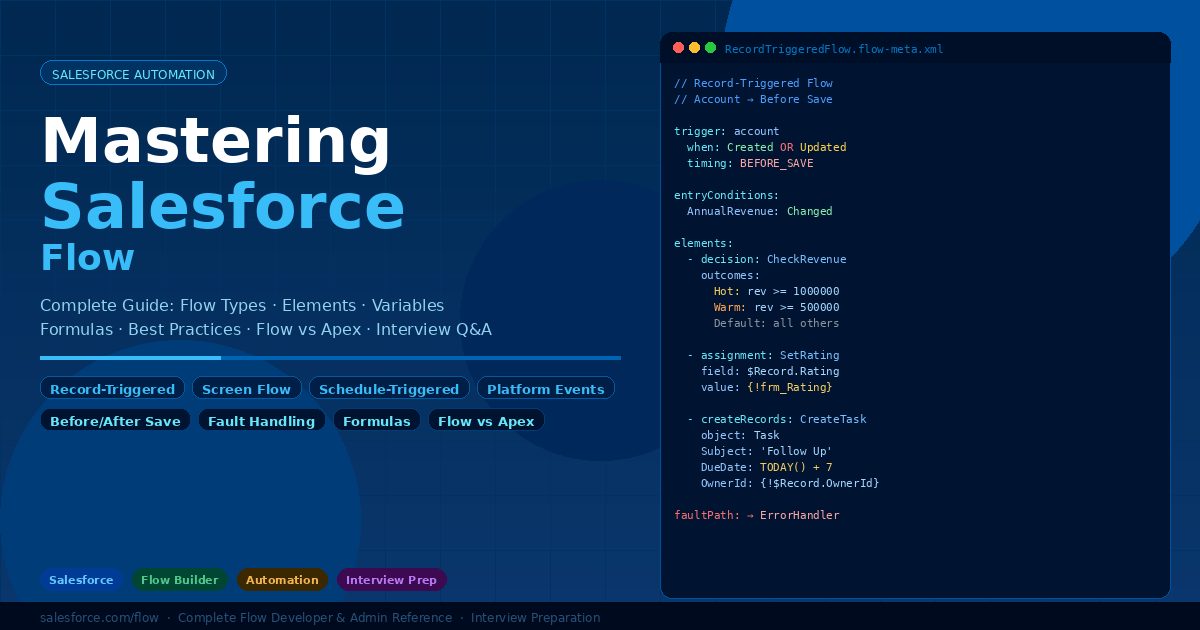
Salesforce Flow
Salesforce Flow — Complete Guide
Every flow type explained, all elements in detail, best practices, formula fields, error handling, flow vs Apex decision guide, and scenario-based interview questions with step-by-step solutions.
Flow Types
Elements & Variables
Formulas & Logic
Best Practices
Flow vs Apex
Interview Q&A
Scenarios
Flow Types
Elements
Variables & Formulas
Logic & Error Handling
Best Practices
Flow vs Apex
Interview Q&A
Scenarios
What is Salesforce Flow?
Salesforce Flow is the declarative automation platform that replaces Workflow Rules and Process Builder. It uses a drag-and-drop canvas to build complex business processes without code. Flow is now the primary Salesforce automation tool and is heavily tested in all admin and developer interviews.
Record-triggered flow
Fires on DML operations
Triggers on insert, update, delete, or undelete of a record. Runs before or after save. Replaces Workflow Rules and Process Builder completely. Most commonly used flow type.
Screen flow
User-facing wizard
Presents interactive screens to users with input fields, dropdowns, tables. Launched from Quick Actions, Utility Bar, Experience Cloud, or embedded in App Builder. Think of it as a form wizard.
Schedule-triggered flow
Runs on a time schedule
Executes on a recurring schedule (daily, weekly) against a batch of records. Use for nightly cleanup, monthly reporting, reminders. Replaces scheduled Apex in most cases.
Platform event-triggered flow
Event-driven automation
Subscribes to Platform Events. Fires when a matching event is published. Used for real-time integrations between systems and for decoupled event-driven architectures.
Autolaunched flow
Called by code or other flows
Has no trigger of its own. Must be called from Apex, REST API, another flow, or a process. Used for reusable flow logic — like a shared utility method. No user interface.
Field service mobile flow
For mobile workers
Runs on the Salesforce Field Service mobile app. Guides field technicians through step-by-step processes during site visits, inspections, and service appointments.
Record-triggered flow — execution timing
The most important flow type in interviews. Understanding when it runs relative to the database save is critical.
1
Before-save flow (Fast field updates)
Runs BEFORE the record is saved to the database. Can only update fields on the triggering record itself — no SOQL, no DML on other objects. Equivalent to a before trigger. Much faster than after-save. Use for: defaulting fields, computing values, validation.
2
Database save
Record is written to the Salesforce database. System-set fields (Id, CreatedDate, LastModifiedDate) are now available. This is the commit point.
3
After-save flow (Full automation)
Runs AFTER the record is saved. Has full access to SOQL, DML on other records, callouts (via Apex action), sending emails, and creating related records. Use for: creating child records, updating related records, sending notifications. Record Id is available here.
i
Interview key fact: Before-save flows run in the same transaction as the save and are FASTER than after-save because they avoid an additional DML operation. Always use before-save when you only need to update fields on the triggering record itself.
Flow elements — complete reference
Flow elements are the building blocks placed on the canvas. Each element has a specific purpose and set of properties. Understanding every element is essential for designing efficient flows.
Interaction
Screen
Displays a page to the user with components: text input, radio buttons, checkboxes, picklists, lookup, data table, file upload, address, signature.
Logic
Decision
Evaluates conditions and routes to different outcomes (like an if-else statement). Each outcome is a set of conditions with AND/OR logic.
Logic
Loop
Iterates over a collection (List) one item at a time. Provides a current item variable to use inside the loop. Has a “For Each” output for the next iteration and an “After Last” output for when done.
Logic
Collection sort
Sorts a Record Collection or Apex-defined collection by up to 3 fields, ascending or descending.
Data
Get records
Queries Salesforce data. Returns the first matching record or a collection. Equivalent to a SOQL SELECT. Specify object, fields, filter conditions, and sort order.
Data
Create records
Inserts one or more new records. Can create from variable field values or from a record collection. Returns the new record Id(s).
Data
Update records
Updates existing records. Can update the triggering record (in record-triggered) or other records. Specify the record to update and the field assignments.
Data
Delete records
Deletes records. Can delete a single record by Id or an entire record collection. Use with caution — deleted records go to the recycle bin.
Action
Action (legacy)
Calls an Apex method marked @InvocableMethod, sends emails, posts to Chatter, submits for approval, or calls a subflow.
Action
Apex action
Calls an Apex class method annotated with @InvocableMethod. Allows passing inputs and receiving outputs. Used when declarative Flow cannot do what’s needed.
Action
Subflow
Calls another Autolaunched Flow. Passes input variables and receives output variables. Like calling a method from another class. Promotes reuse.
Action
Send email
Sends an email using an Email Template or custom body. Can send to record owner, specific users, or dynamic email fields. No code needed.
i
Collection pattern: Use Get Records → Loop → Decision inside loop → Update Records OUTSIDE the loop. Never put a DML element (Create/Update/Delete Records) inside a loop — each iteration triggers a separate DML, which can hit governor limits just like SOQL/DML in Apex loops.
Variables, formulas, and resources
Resources store, compute, and manage data in a flow. Understanding every resource type and how to use formulas is critical for building complex flows.
Variable
Single value
Stores a single value of any data type: Text, Number, Currency, Boolean, Date, DateTime, Record (SObject), or Apex-defined. Can be Input (passed in), Output (returned), or both.
Collection variable
List of values
Stores a list of values. Collection of Text, Number, or SObject records. Used with Loop element to iterate. Always use record collections instead of individual variables when processing multiple records.
Constant
Fixed value
A value that never changes. Defined once and referenced throughout the flow. Best practice: use constants for magic values like tax rates, status strings, email addresses.
Formula
Computed value
Uses the same formula syntax as Salesforce formula fields. Computed at runtime every time referenced. Cannot store values — always recomputes. No loop iteration access.
Text template
Dynamic text block
Creates rich text with embedded merge fields. Used for email bodies, dynamic messages, HTML content. Supports merge field syntax: {!VariableName}.
Stage
Progress tracking
Defines stages in a multi-step screen flow for progress indicators. Displayed in the Path component on the screen. Stages are ordered and can be active, completed, or upcoming.
Flow formulas — essential syntax
Flow formulas use the same engine as Salesforce formula fields. These are the most commonly used functions in flow formulas.
| Function | Purpose | Example |
|---|
IF(condition, true, false) | Conditional value | IF({!Account.AnnualRevenue} > 1000000, "Hot", "Cold") |
AND(cond1, cond2) | Multiple conditions | AND({!Account.Phone} != null, {!Account.Email} != null) |
OR(cond1, cond2) | Either condition | OR({!Status} = "New", {!Status} = "Draft") |
NOT(condition) | Negate condition | NOT(ISBLANK({!Account.Phone})) |
ISBLANK(field) | Check null/empty | ISBLANK({!Contact.Email}) |
ISNULL(field) | Check null only | ISNULL({!Account.Id}) |
TEXT(value) | Convert to text | TEXT({!Account.AnnualRevenue}) |
VALUE(text) | Convert to number | VALUE({!QuantityField}) |
TODAY() | Current date | TODAY() + 30 (30 days from now) |
NOW() | Current datetime | NOW() |
DATEVALUE(datetime) | Extract date part | DATEVALUE({!Contact.CreatedDate}) |
LEFT(text, n) | First n characters | LEFT({!Account.Name}, 3) |
CONTAINS(text, search) | Text contains string | CONTAINS({!Account.Name}, "Corp") |
LEN(text) | String length | LEN({!Variable}) |
ROUND(number, decimals) | Round number | ROUND({!Revenue} / 1000, 2) |
✓
Variable naming convention best practice: Use descriptive prefixes — var_ for variables, col_ for collections, const_ for constants, frm_ for formulas, txt_ for text templates. This makes large flows much easier to read and maintain.
Logic, decisions, loops, and error handling
Understanding how to structure complex branching logic, iterate over collections correctly, and handle faults is what separates good flow developers from great ones.
Decision element — condition logic
Decision outcomes — evaluation order matters
1
Outcome conditions evaluated top to bottom
The FIRST outcome whose conditions are ALL true is taken. Remaining outcomes are not evaluated. Order your outcomes from most specific to least specific.
2
Default outcome (else)
Always add a Default outcome to handle cases where no named outcome matches. Failing to do so leaves the flow with no path to take, causing a fault.
3
AND vs OR within an outcome
Within a single outcome, multiple conditions can use AND (all must be true) or OR (any one must be true). You can mix by adding multiple condition groups.
Loop element — the correct pattern
Correct loop pattern
1. Get Records → store collection
2. Loop over collection
3. Decision inside loop (evaluate current item)
4. Assignment inside loop (modify current item)
5. Add to separate “to update” collection
6. Update Records OUTSIDE loop — 1 DML
Never do this
1. Get Records
2. Loop over collection
3. Update Records INSIDE loop
This triggers a separate DML per record and can hit the 150 DML governor limit instantly with large collections.
Fault handling — the most forgotten topic
!
Every DML and Action element can fault — always connect the fault path
When a Get Records, Create Records, Update Records, Delete Records, Apex Action, or Send Email element fails, Flow routes to the Fault connector. If no Fault connector is defined, the flow throws an unhandled fault error that is hard to debug. Always connect fault paths to a custom fault message screen or an Apex action that logs the error.
Fault pattern 1
Show error screen to user
For Screen Flows: connect the fault path to a Screen element that displays {!$Flow.FaultMessage} to the user with a friendly message and a “Try Again” button.
Fault pattern 2
Log error and notify admin
For Record-Triggered Flows: connect the fault path to a Create Records element that creates a custom Error_Log__c record, then send an email to the admin with {!$Flow.FaultMessage}.
!
Transaction control: A record-triggered flow runs in the same transaction as the triggering DML. If the flow faults after partial execution, ALL DML in the transaction (including the original save) is rolled back. Design your flows to be resilient to partial failures.
Flow best practices
These are the rules that separate production-quality flows from flows that cause performance issues, governor limit errors, and maintenance nightmares.
1
One flow per object per trigger event — use a single consolidated flow
Multiple record-triggered flows on the same object with the same trigger event fire in an unpredictable order. Consolidate all automation for an object and trigger event into a single flow, using Decision elements to branch into different logic paths. This mirrors the “one trigger per object” rule in Apex.
2
Use entry conditions — don’t run flows on every save
Always configure the “Entry Conditions” on a record-triggered flow to only run when relevant fields change or the record meets specific criteria. Without entry conditions, your flow runs on EVERY save of that object, even when your logic wouldn’t do anything. This wastes governor limits and CPU time.
3
Never DML inside loops — build collections and DML outside
Just like Apex, putting Create/Update/Delete Records elements inside a Loop can hit the 150 DML governor limit with large collections. Always collect records in an Assignment element inside the loop, then do ONE DML outside the loop using the collection.
4
Use before-save for field updates on the triggering record
Before-save flows that only update the triggering record use zero extra DML statements — the update is “free” because it’s bundled into the original save. After-save flows require a separate update DML. For simple field defaulting and computation, always choose before-save.
5
Use Run Only When Changed — prevent unnecessary recursion
On the entry conditions, enable “Only when a record is created or when a field meeting the condition changes.” This prevents the flow from re-running when unrelated fields are updated. Equivalent to the field-change detection pattern in Apex triggers.
6
Add fault paths to every data and action element
Unhandled faults in flows are notoriously difficult to debug in production — they show confusing error messages to users and generate hard-to-trace debug logs. Connect every data element’s fault path to either a user-facing screen or an error logging action.
7
Descriptive labels, not default “Assignment 1” names
Flow canvas elements default to generic names. Rename every element to describe WHAT it does: “Check if Account is Premium”, “Create Welcome Task”, “Send Escalation Email”. This makes flows readable by non-developers and speeds up debugging significantly.
8
Test with Governor Limit debug and bulk-test with 200+ records
Use Flow Debug to step through execution. For record-triggered flows, always test with a Data Loader bulk import of 200+ records to verify your flow doesn’t hit DML or query limits. A flow that passes for 1 record might fail for 200.
Flow vs Apex — decision guide
The classic interview question: “When do you use Flow vs Apex?” Here is a definitive decision framework with concrete examples for each scenario.
| Requirement | Use Flow | Use Apex |
|---|
| Simple field updates on save | Before-save Flow | Overkill |
| Create related records on insert | After-save Flow | When logic is complex |
| Send email notification | Flow + Email Template | When dynamic content is complex |
| Update unrelated object records | After-save Flow | When 5+ objects involved |
| HTTP callout to external system | Not possible | @future or Queueable |
| Complex mathematical computation | If formula covers it | When formulas fall short |
| Aggregate SOQL (SUM, COUNT, GROUP BY) | Not natively supported | AggregateResult in Apex |
| Process millions of records | Scheduled Flow (limited) | Batch Apex (50M rows) |
| User-facing guided process (wizard) | Screen Flow | Requires custom LWC |
| Event-driven integration | Platform Event Flow | When needs complex logic |
| Recursion prevention | Limited options | Static Boolean in Apex |
| Complex data transformation/mapping | If collections are enough | For JSON, CSV, complex maps |
| Mixed DML (Setup + non-setup) | Not possible in same flow | @future method |
| Testable, version-controlled code | Limited (no unit tests) | Full test coverage with Apex |
When Flow wins
No code deployment needed — admins can modify
Faster to build for standard automation patterns
Screen Flows replace custom LWC for guided processes
Automatically respects Sharing Rules
Flow versions enable easy rollback
No test coverage requirement (but recommended)
When Apex wins
HTTP callouts to external systems
Complex algorithms and data transformations
Aggregate SOQL (GROUP BY, HAVING)
Batch processing of millions of records
Mixed DML (setup + non-setup objects)
Full unit test coverage and TDD
i
Salesforce guidance (2024): Always use Flow first. Only use Apex when Flow cannot meet the requirement. Salesforce is investing heavily in Flow capabilities and eventually aims for admins to handle 90%+ of automation without code. When combining both, prefer calling Apex from Flow (via @InvocableMethod) over writing standalone Apex triggers for tasks Flow can partly handle.
Interview questions & detailed answers
Tap any question to expand the full answer. Covers admin-level through architect-level Salesforce Flow topics.
Scenario-based questions with step-by-step solutions
Real interview scenarios for Salesforce Flow. Each includes the business problem, full design approach, element-by-element solution, and where Apex is needed.